
What you need
A ChatGPT plan at Plus or above, and the ChatGPT desktop app on a Mac or Windows computer, signed in. The whole flow below lives in the desktop app’s settings.
A free Claude account is all you need, so you don’t have to pay for an AI to get coached. Any paid Claude plan works the same way. ChatGPT works too, from Plus upwards.
Open Settings
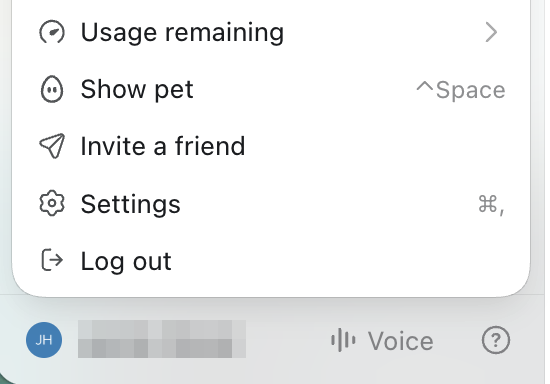
In the ChatGPT desktop app, click your name at the bottom left of the sidebar, then choose Settings from the menu that opens.
Open Plugins
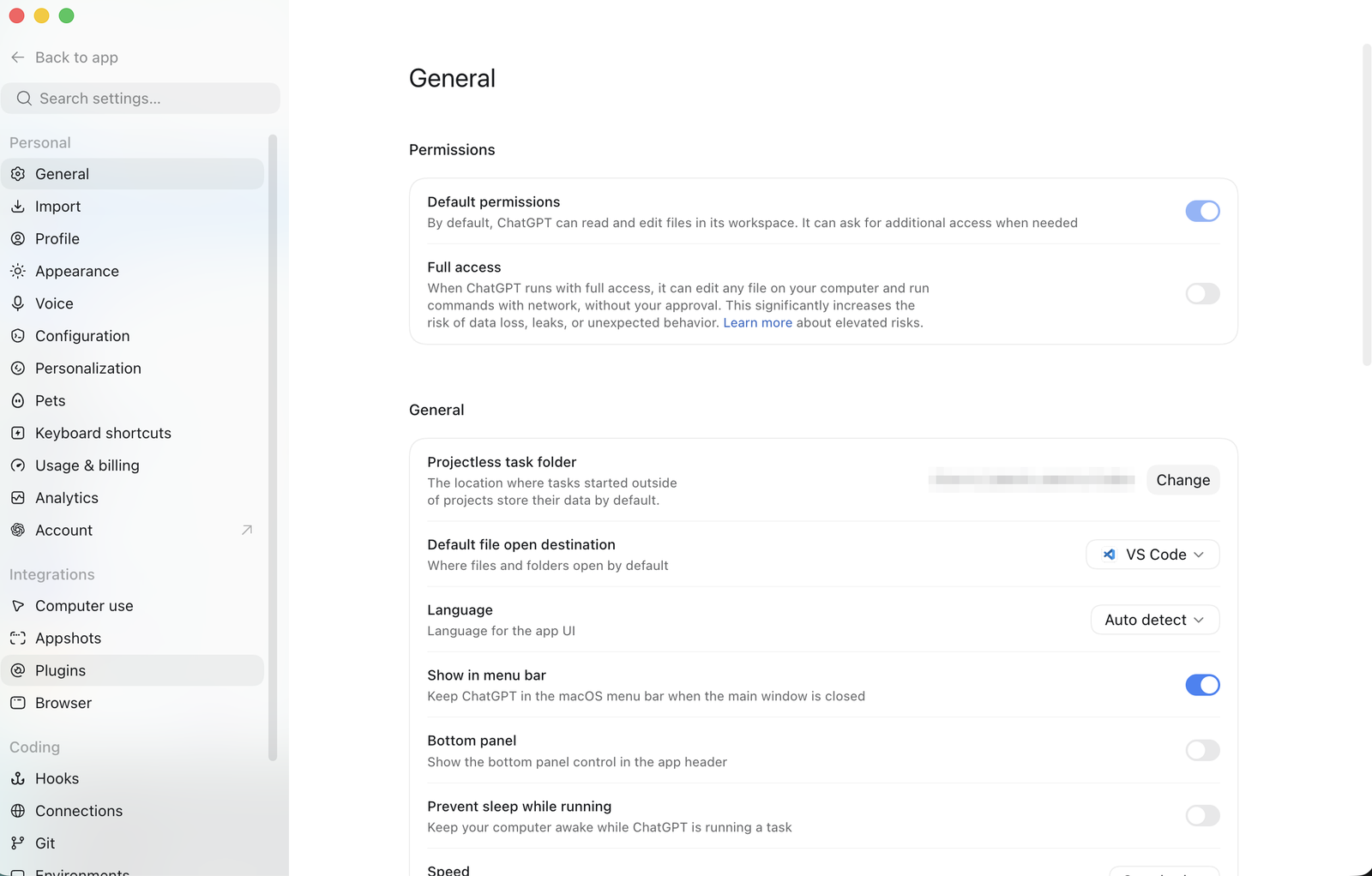
In the settings sidebar, under Integrations, click Plugins. The panel that opens is where ChatGPT keeps plugins, skills and MCP servers.
Add MCP server
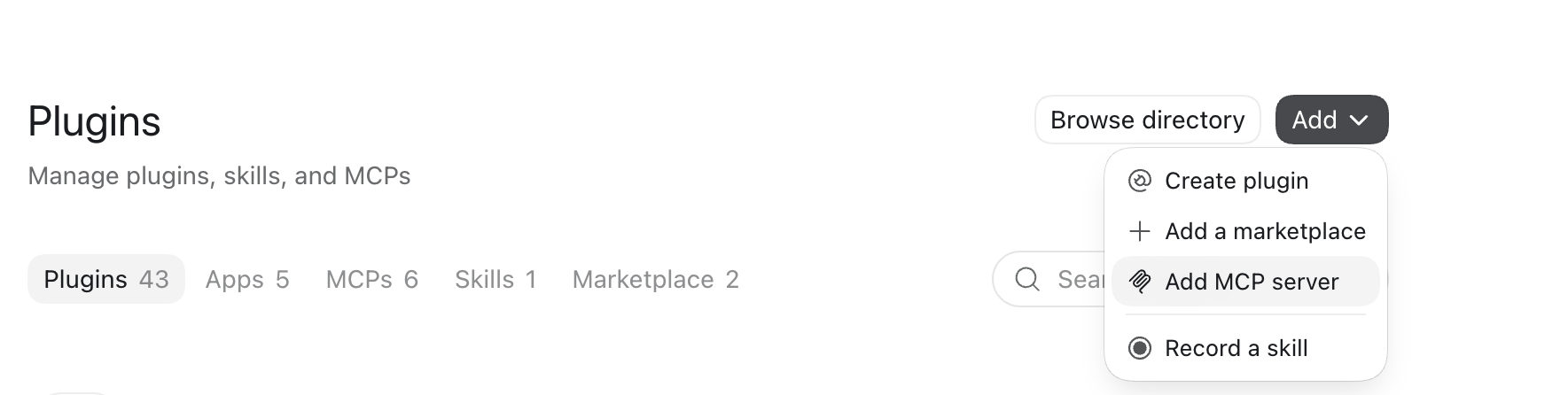
Click Add at the top right, then Add MCP server.
Name it, set the type, paste your link
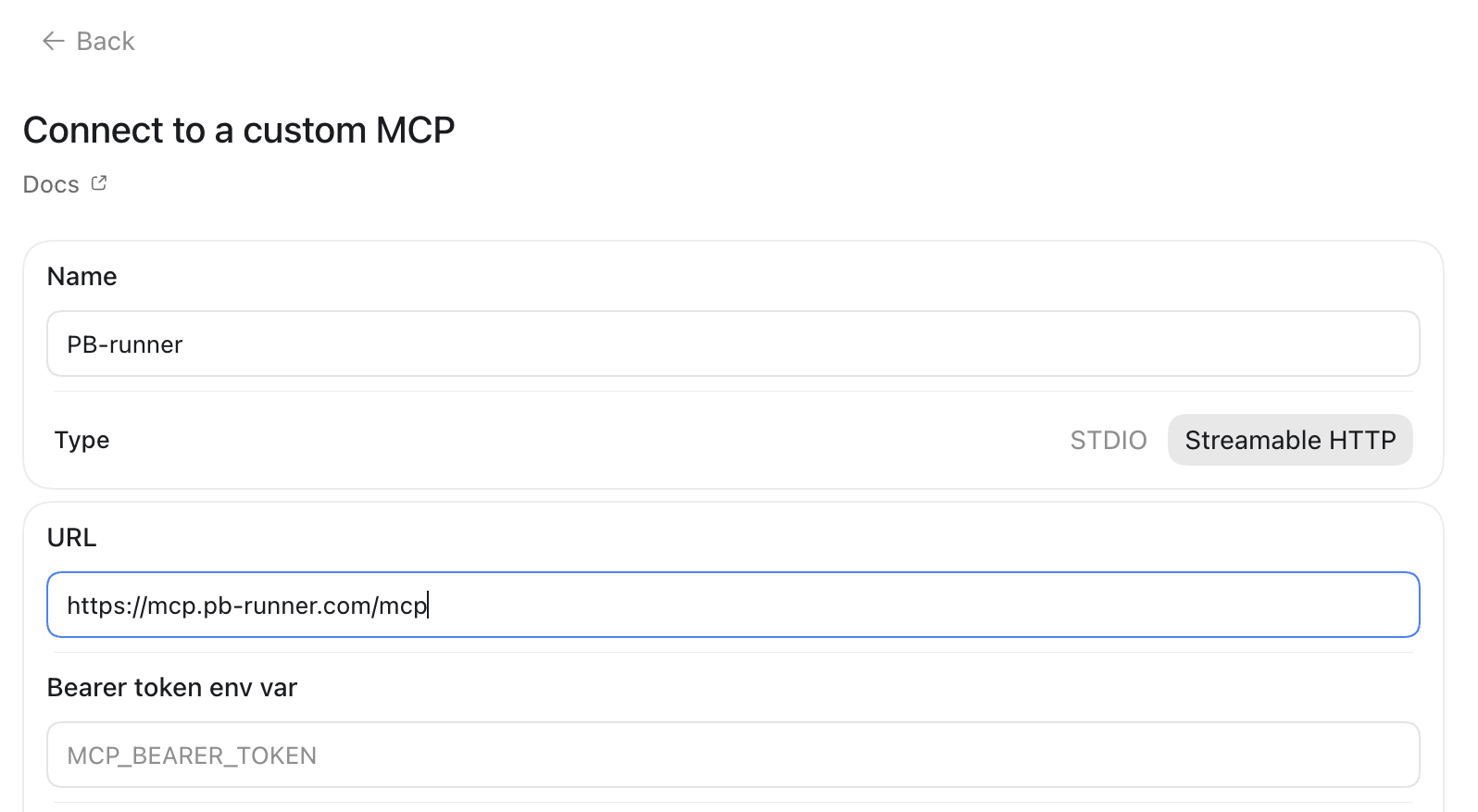
A form called Connect to a custom MCP opens. Three things to get right:
- Name: type PB-Runner. The name you type here is the name that appears in your server list.
- Type: choose Streamable HTTP, the switch on the right. The connection does not work without it.
- URL: paste your link, below. Leave the bearer token and header fields empty.
https://mcp.pb-runner.com/mcpThen save the form. One note on the screenshots on this page: they were captured over a couple of attempts, so the name in them is not always the one above. Yours will read whatever you typed.
Authenticate
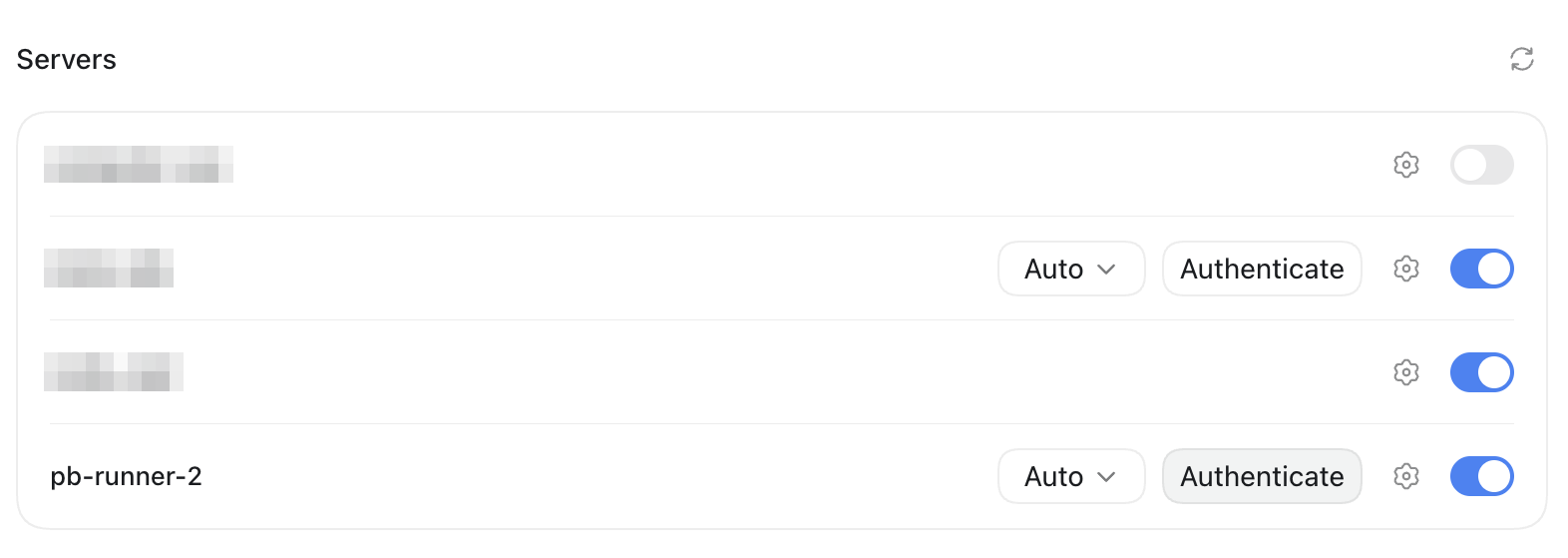
Back on the MCPs tab, PB-Runner appears under Servers. Click Authenticate. Your browser opens: sign in with the same Apple or Google account you use in the PB-Runner app. If that browser is already signed in to pb-runner.com, it finishes on its own.
The account is the part worth slowing down for. A different Apple or Google account than the one in the app points ChatGPT at the wrong running history.
Connected
The browser ends on a plain page reading Authentication complete. You may close this window. That is the whole setup. Back in ChatGPT, start a chat and ask about your running.

Start coaching
From here ChatGPT coaches the same way Claude does: it reads your runs, sets your goal with you, builds your plan, and every session it writes lands in the app and plays on your watch or your phone. Start anywhere, for example:
“Look at my recent training and tell me what you’d work on first.”
Goals, plans and the weekly rhythm are covered in chapter one of the setup guide, and everything there works the same from ChatGPT.
When something is wrong
- The server saves but never connects: check Type reads Streamable HTTP, not STDIO, and that the URL is exactly the link above.
- ChatGPT connects but cannot see your training: it authenticated as a different account. Sign out of pb-runner.com in your browser, click Authenticate again and sign in with the account you use in the app.
- Not on Plus yet: MCP servers are available from Plus upwards, so the free and Go plans cannot connect. A free Claude account does the same job; the setup guide covers it.
- PB-Runner is listed but ChatGPT never uses it: check the toggle at the end of its row is on, then ask again in a new chat.
Prefer Claude, or starting from nothing? The setup guide takes you from a free Claude account to your first training plan.
Anything else is on the support page.